The validation workspace
The screen where you compare every extracted value against the source document, correct it if needed, then approve or reject the dossier.
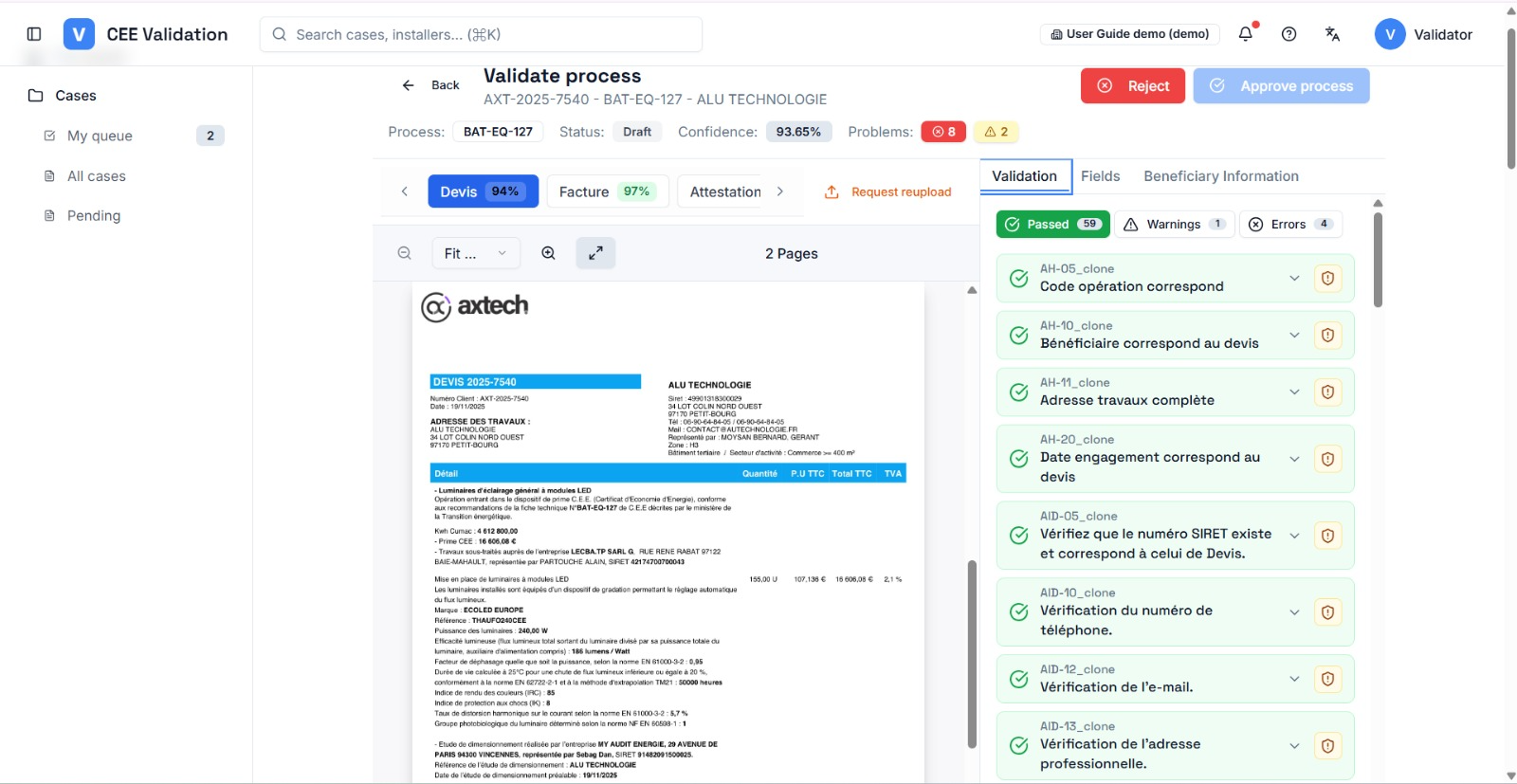
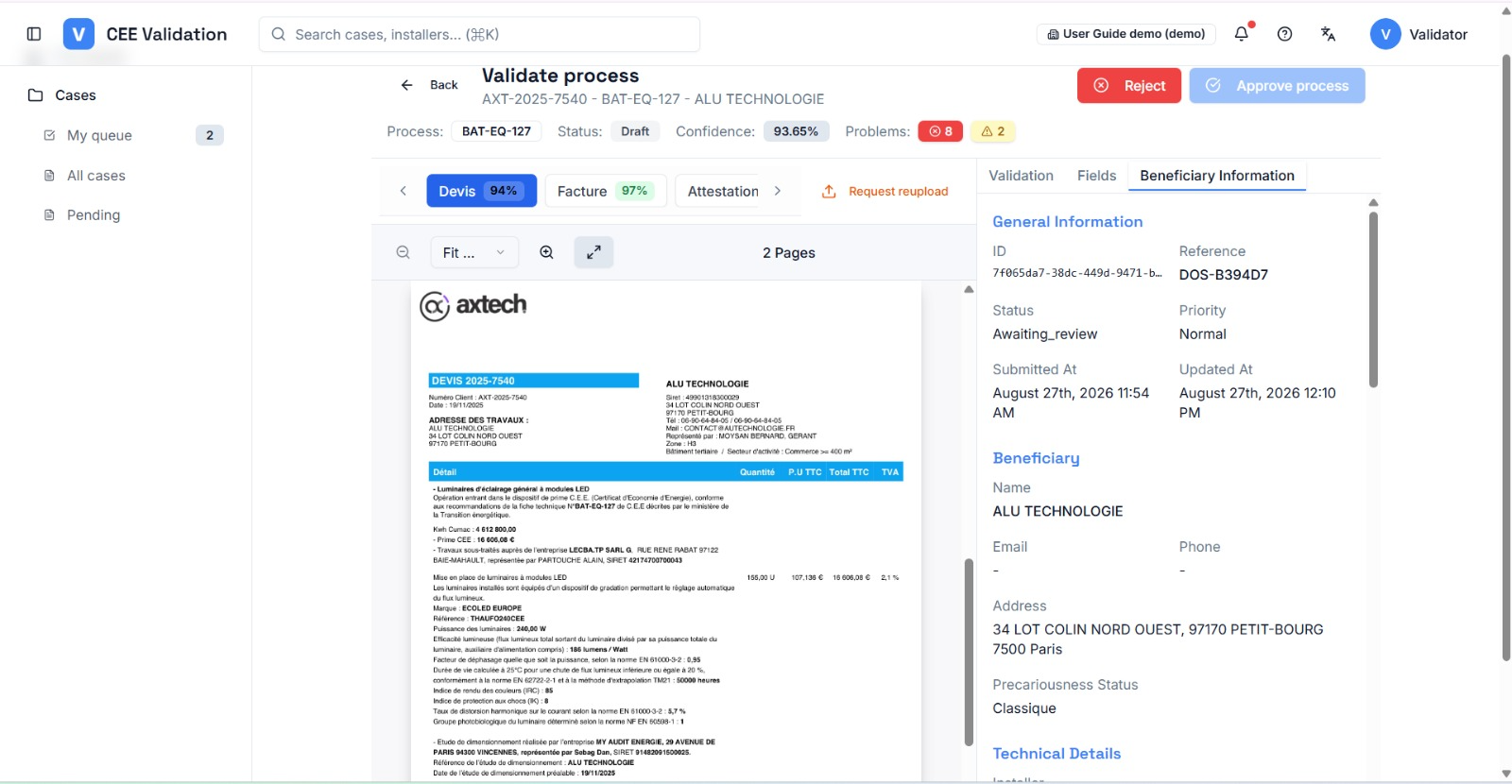
The validation workspace is split in two: the source PDF on one side, data and rules on the other. When you click an extracted value, iverif highlights the exact spot on the document it came from — you verify at a glance, without digging through pages.
For each value, three choices: confirm if it is right, correct it if the AI got it wrong, or mark it wrong if it cannot be found. An AI re-extraction button lets you re-read a single value after a correction.
The “Validation” tab lists the CEE fiche checks (required mentions, technical thresholds, cross-document consistency) with their results, filterable by Passed, Warnings and Errors. A failing blocking rule can only be overridden with a written reason, which stays on record.
When everything is reviewed, you approve or reject — fiche by fiche if the dossier has several. The dossier is approved only when all its fiches are.
Screenshots
Steps
- Browse the documentsThe tabs on top switch between documents (Devis, Facture, Attestation… — document names keep their French labels), each showing its confidence score; if the dossier has several fiches, one tab per fiche appears.
- Check the extracted valuesIn the Fields tab, click a value to locate its highlighted source in the PDF. The badge color shows extraction reliability.
- Correct or confirm each valueConfirm the right values; correct the wrong ones. When in doubt, use AI re-extraction on that value.
- Review the failing rulesIn the “Validation” tab, filter by Errors then read the reason of each failure. Fix the faulty value, or request a fresh AI check of the rule.
- Save your changesSave the edited fields: dependent rules are then recomputed before the decision.
- Approve or rejectApprove the fiche if everything is compliant; otherwise reject it with a reason, or request a document reupload from the installer (“Request reupload” button on the document).
Watch out
Glossary
| Term | Definition |
|---|---|
| Override | Reasoned decision to accept a dossier despite a failing rule. |