Correcting extracted fields
The “Fields” tab lets you check every AI-read value against the PDF, correct it, and re-run extraction when needed.
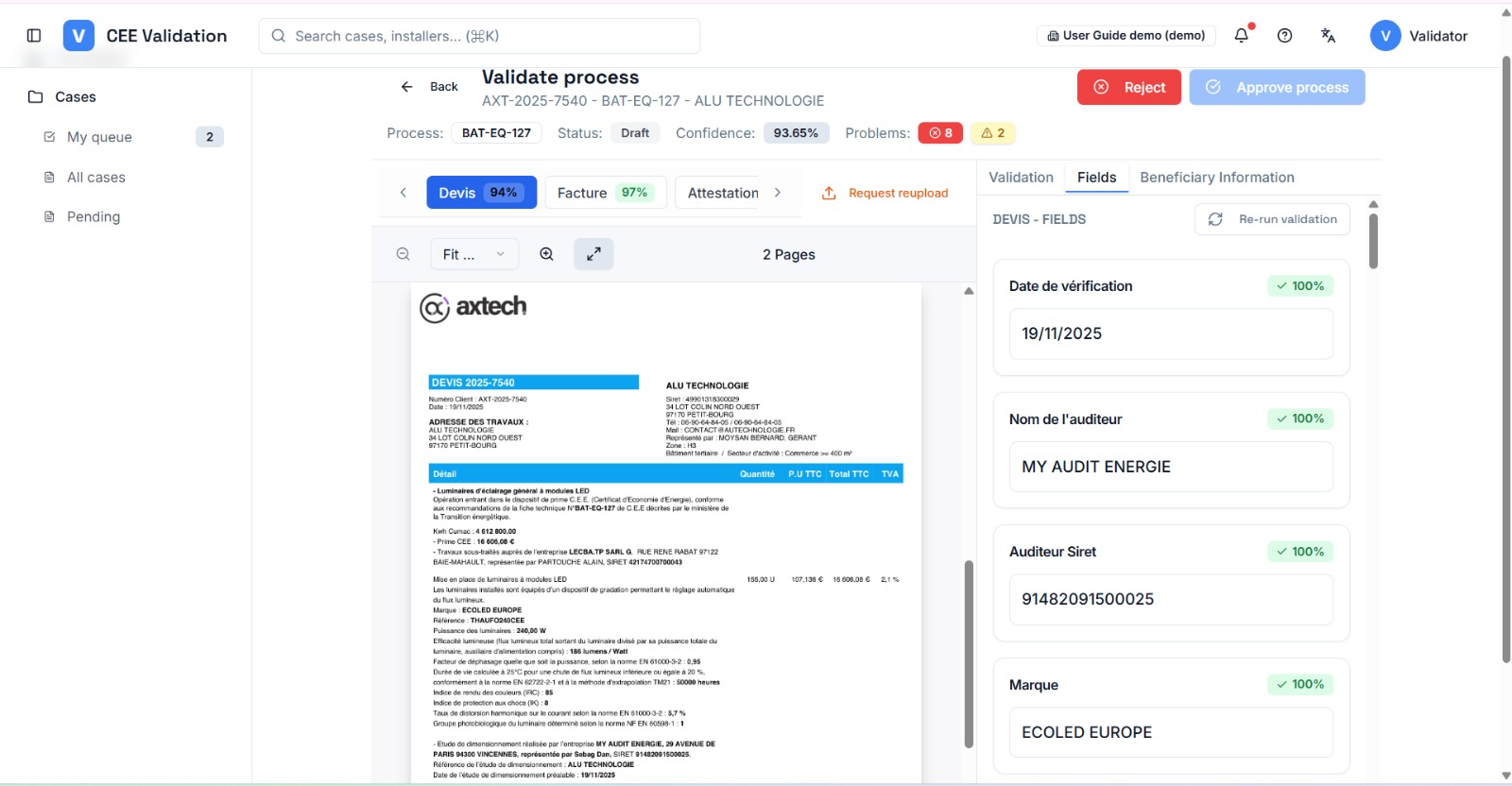
The AI extracts dozens of values per document: dates, amounts, areas, references, names… The “Fields” tab lists them all. Clicking a field highlights the exact spot on the PDF where the value came from — checking takes seconds per field.
Three situations: the value is right (nothing to do), it is wrong (you correct it by hand), or it cannot be found (you mark it as wrong). A “Re-run validation” button lets the AI re-read a value after a correction — useful when the document is ambiguous.
Edited fields are marked as dirty (unsaved). They are saved automatically when you approve, or manually beforehand. Until they are saved, rules are not recomputed.
Screenshots
Steps
- Open the “Fields” tabIn the validation workspace, the right panel has three tabs: Validation, Fields, Beneficiary Information. Pick “Fields”: values are grouped per document (DEVIS - CHAMPS, FACTURE - CHAMPS…).
- Click a field to locate itThe matching area is highlighted in the PDF on the left. Compare the extracted value to the document.
- Correct wrong valuesType the right value in the field editor. The correction replaces the extracted value for rule checking.
- Use AI re-extraction when neededOn a doubtful value, “Re-run validation” makes the AI re-read it and updates the corrected value.
- Save your correctionsSave the edited fields (or let approval do it for you): dependent rules will be recomputed.