Home / Getting started
Your profile and password
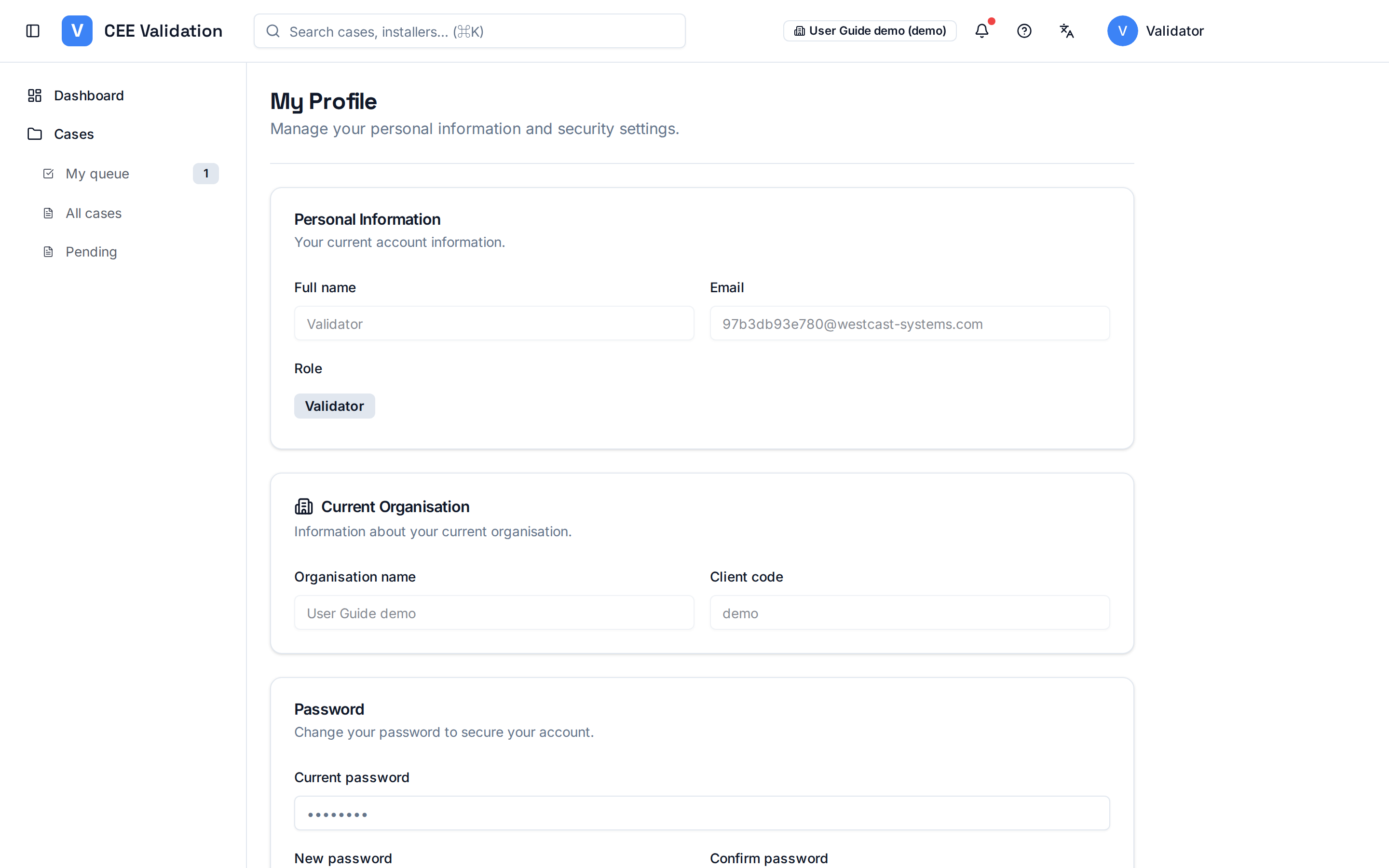
The “My Profile” page shows your account information and organization, and lets you change your password.
The “My Profile” page centralizes your identity in iverif: full name, email and role (shown as a badge: Administrator, Validator, Installer…). This information is read-only — it is managed by your administrator.
The “Organisation Actuelle” card shows the organization you belong to: name, client code and contact email. If your account can access several organizations (the case for some installers), they are listed under “Organisations accessibles”.
This is also where you change your password. The form helps you in real time: a gauge shows the new password's strength (red, yellow, green) and an indicator confirms both entries match.
Screenshots
Steps
- Open “My Profile”From the side menu (Settings) or your avatar menu top-right, open the profile page.
- Check your informationReview name, email, role and organization. If anything is wrong, ask your administrator to fix it — these fields cannot be edited here.
- Enter your current passwordIn the “Mot de passe” card, start with your current password: it proves your identity.
- Choose a new passwordMinimum 8 characters. Aim for a green gauge: mix capitals, digits and symbols.
- Confirm and updateRe-type the new password — the “Matches” indicator must appear — then click “Update password”.
Watch out
⚠️ If the current password is wrong, the update is refused — check the case and try again.
⚠️ If your session expires during the update, sign in again and retry.