The obligator workspace
Track dossiers submitted on your behalf, filter by status and operation, export — and manage your company profile.
As an obligator, you fund the CEE programme: installers submit their dossiers and iverif validates them on your behalf. Your workspace has just three menu entries — Dashboard, My Cases, My Profile — giving you visibility without exposing internal configuration.
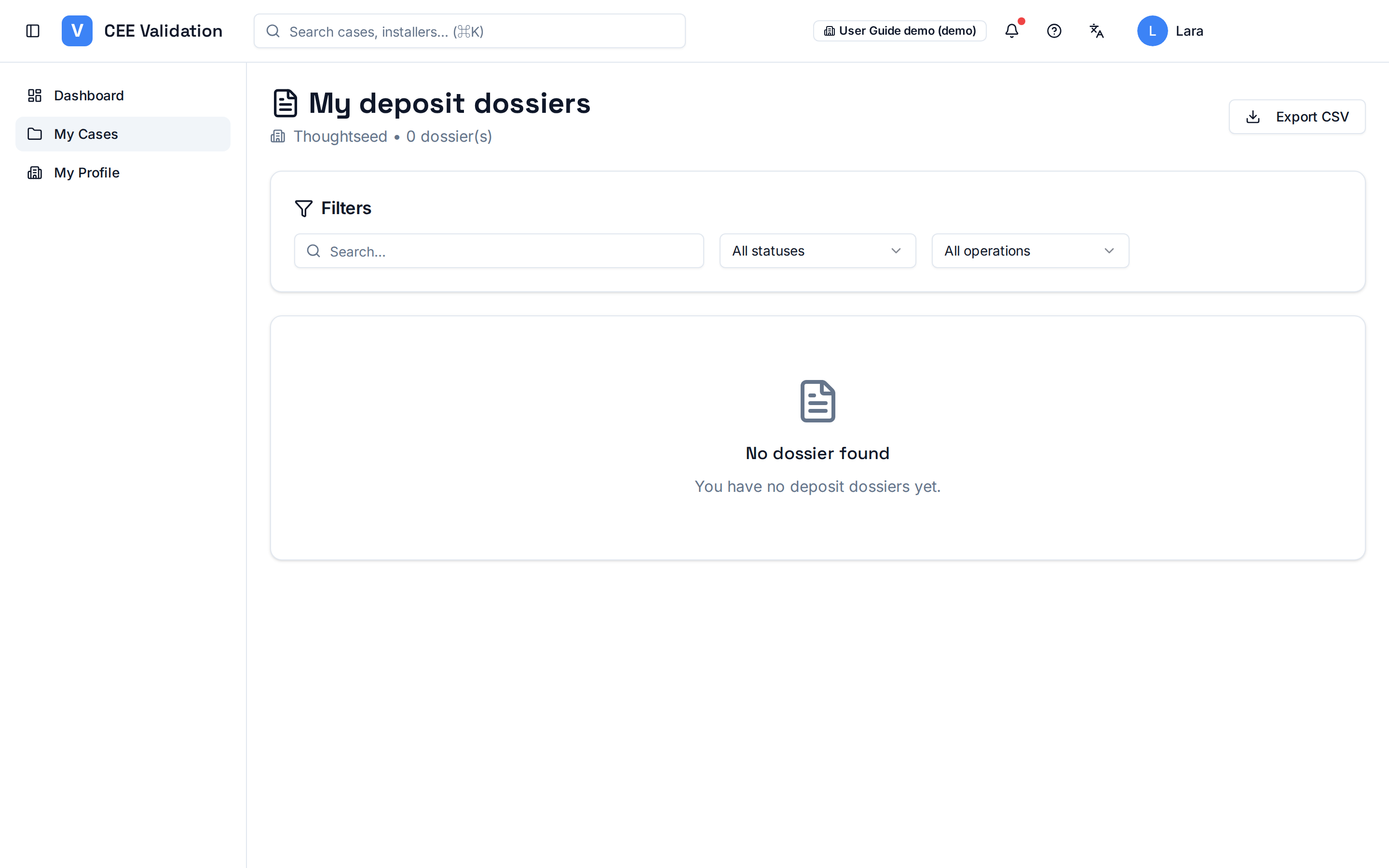
The “My deposit dossiers” page lists the dossiers attached to your company: free search, filters by status and operation, a confidence score per dossier, and an “Export CSV” button for your reporting. The dashboard summarizes activity (active dossiers, approved this month, pending, total kWh Cumac) with a preview of recent dossiers.
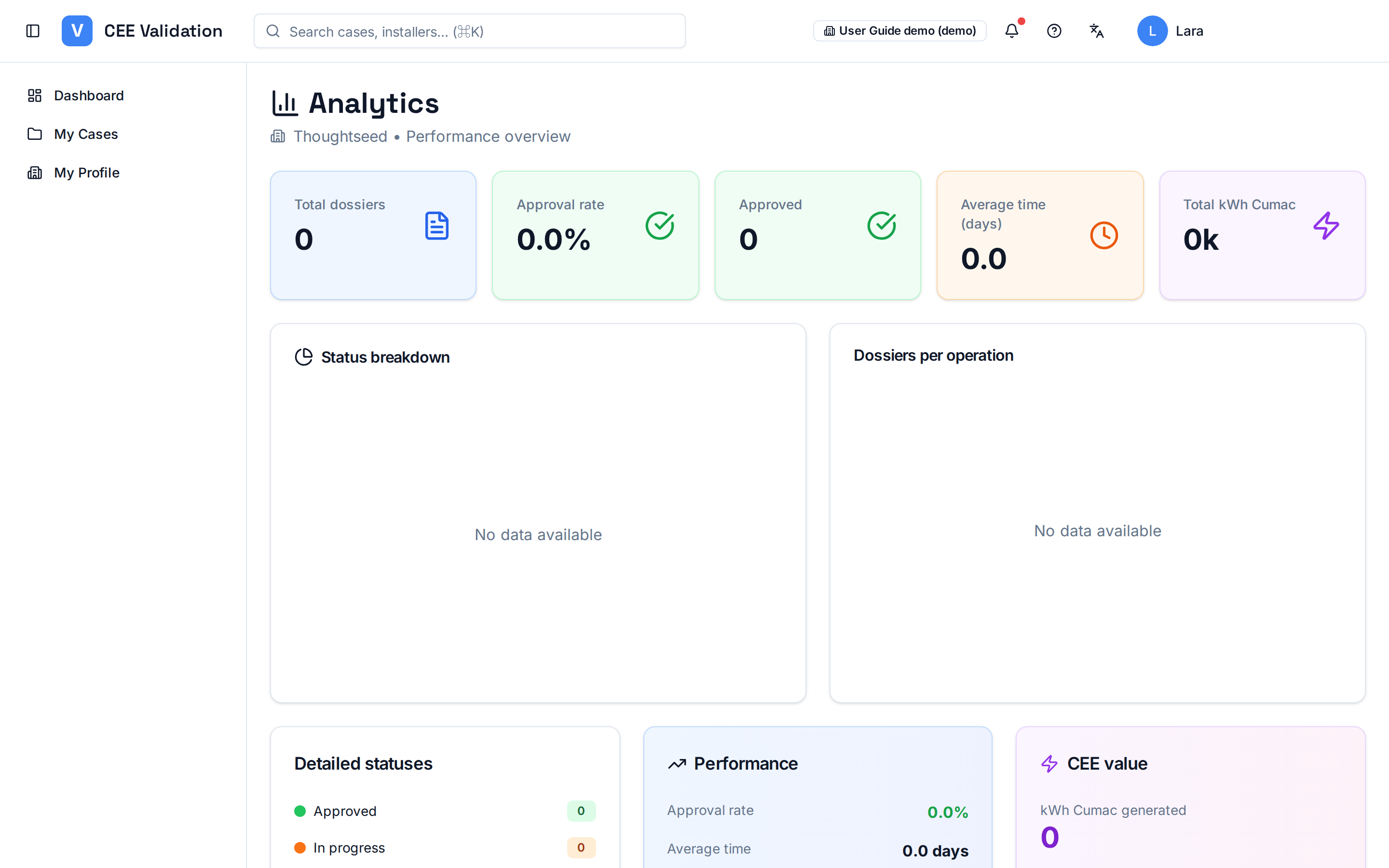
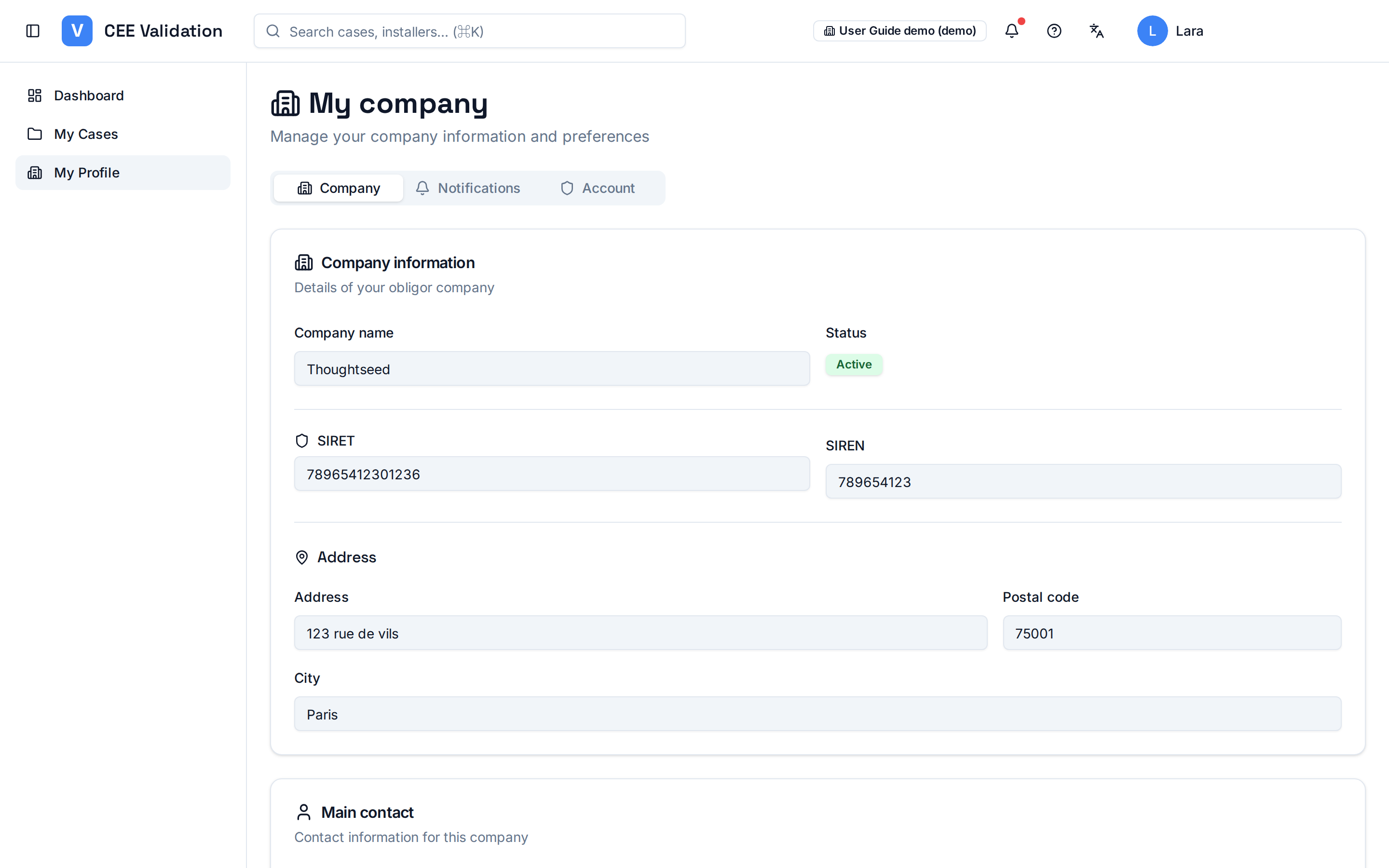
From the dashboard's “Performance summary” card, the “View analytics” button opens the Analytics page: approval rate, average processing time, generated kWh Cumac, status breakdown and dossiers per operation. Finally, “My Profile” opens “My company”, organized in three tabs: Company (details, SIRET/SIREN, main contact), Notifications and Account.
Screenshots
Steps
- Open “My Cases”The “My deposit dossiers” page lists every dossier submitted on your behalf, with its status.
- Filter by status or operationCombine free search, status filter and operation filter to isolate a campaign or pending dossiers.
- Read the confidence scoreThe colored indicator (green ≥ 90%, yellow ≥ 70%, red below) summarizes each dossier's automatic compliance.
- Export your dataThe “Export CSV” button generates your programme tracking file, usable in your internal tools.
- Analyse your performanceDashboard → “Performance summary” card → “View analytics”: approval rate, delays, kWh Cumac and detailed breakdowns.
- Manage your profileIn “My Profile”: the Company tab shows your details, Notifications tunes your alerts, Account manages your password.
Glossary
| Term | Definition |
|---|---|
| Confidence score | Percentage of automatic rules passed on a dossier — a quick indicator of its compliance. |