Home / Administrator workspace
Managing users
Create your organisation's accounts, assign roles, reset passwords and deactivate access.
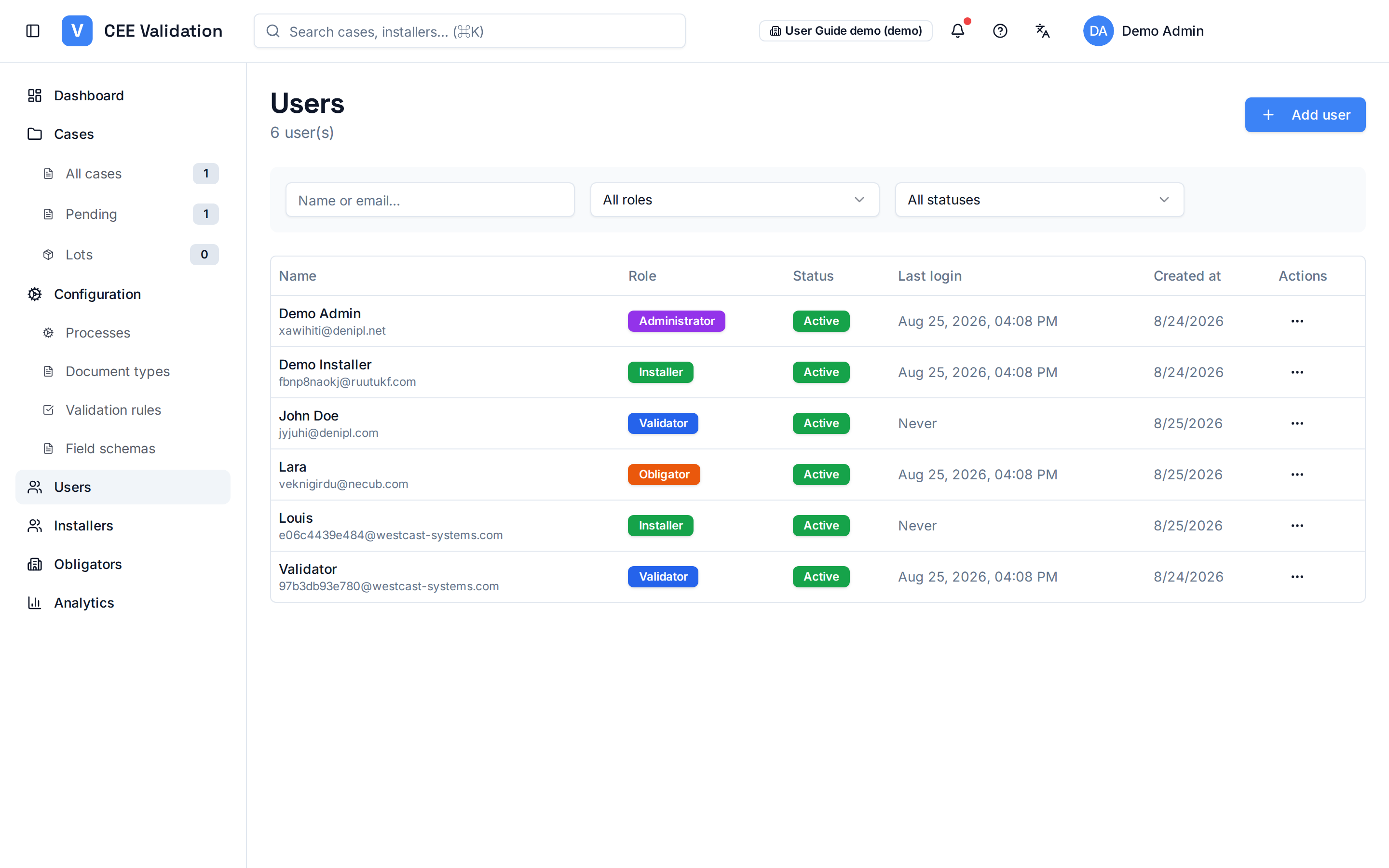
The Users page lists every account in your organisation. Filters at the top let you search by name or email and narrow the list by role (Administrator, Validator, Installer, Obligator) or status (active, inactive).
Each user has a role that determines their workspace: an installer only sees their own dossiers, a validator the validation queue, an obligator their submitted dossiers. Only the administrator sees configuration and account management.
Per-user actions cover the whole account lifecycle: edit details and role, send a password-reset email, temporarily deactivate access, or permanently delete the account.
Screenshots
Steps
- Open UsersSidebar → “Users”. Your organisation's full list appears.
- Create an accountClick “Add user”, enter name, email and role. The user receives their credentials by email.
- Edit an accountOpen the user, adjust details or change their role — the workspace change takes effect at next login.
- Reset a passwordThe dedicated action emails a reset link: the user picks their own new password.
- Deactivate or deleteDeactivation blocks login without erasing data (reversible). Deletion is permanent — confirmation is required.
Watch out
⚠️ Deleting a user is permanent; prefer deactivation while any doubt remains.
See also
Tracking installersYour organisation's installer directory: RGE certification, SIRET and submitted …Managing obligatorsObligators are the energy suppliers partnering in your CEE programme — their con…Roles and permissionsWhat each role can see and do in iverif — the complete access matrix per workspa…